


HP LaserJet MFP 136a Printer Setup: Complete Installation and Troubleshooting Guide
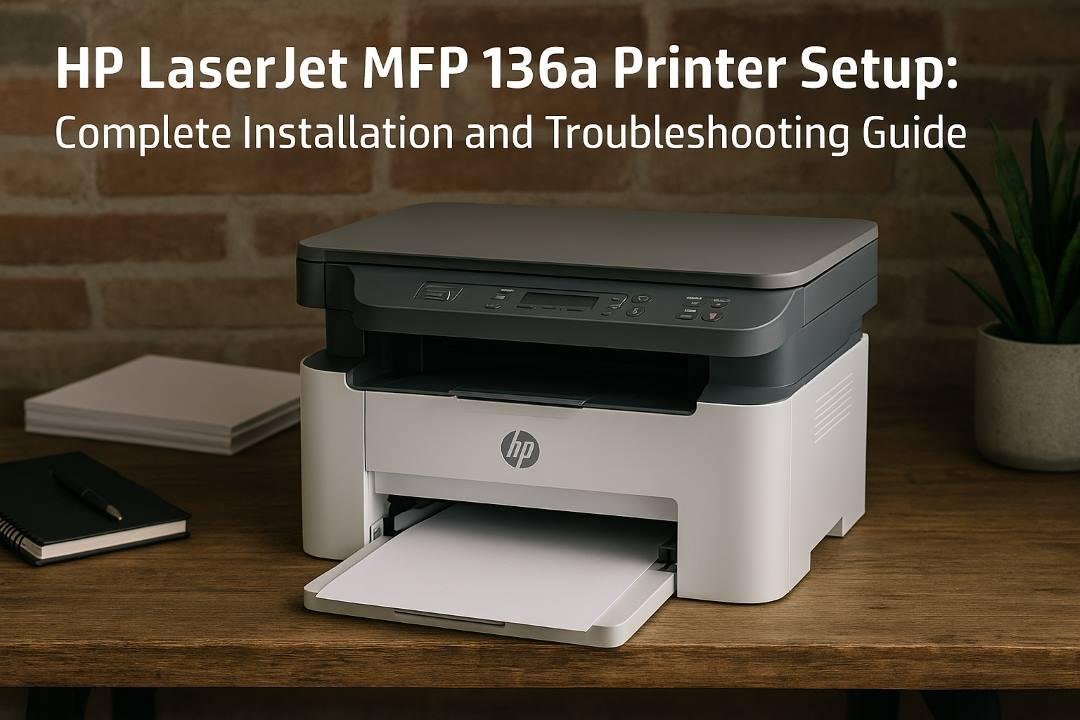
In a world that runs on fast, efficient communication, the humble printer still holds a special place. Whether you’re a student submitting an assignment, a small business printing invoices, or a home user organizing personal records, you need a printer that’s dependable and easy to use. The HP LaserJet MFP 136a is exactly that—a reliable, high-performance machine designed to make printing, scanning, and copying seamless.
But before you can enjoy its crisp prints and efficiency, you’ll need to get it properly set up. Don’t worry—this guide will walk you through every step of the HP LaserJet MFP 136a Printer Setup process. From unboxing and connecting to installing drivers and fixing common setup problems, we’ll cover it all in plain English.
Introduction to HP LaserJet MFP 136a
The HP LaserJet MFP 136a is part of HP’s multifunction printer series, offering print, scan, and copy features all in one compact device. It’s built for small offices, home users, and anyone who needs reliable black-and-white printing.
Unlike many Wi-Fi-enabled models, the HP 136a keeps things simple with a USB connection, making setup easier and more stable. It’s ideal for users who prefer a wired, plug-and-play experience over complex network configurations.
Key Features:
-
Monochrome Laser Printer (Print, Scan, Copy)
-
USB Connectivity
-
Fast print speed (up to 20 ppm)
-
Compact design, perfect for small spaces
-
Sharp text quality for professional documents
-
Energy-efficient technology
What’s in the Box
When you unbox your HP LaserJet MFP 136a, make sure all the components are included. You should find:
-
HP LaserJet MFP 136a Printer
-
Power cord
-
USB cable
-
Setup guide and documentation
-
CD/DVD with driver software (for older systems)
-
Pre-installed toner cartridge (or packed separately)
Before you begin, remove all tapes, packaging materials, and protective films from the printer. Skipping this step often leads to early errors like paper jams or cartridge detection failures.
Setting Up the Printer Physically
Let’s start with the basics—setting up the printer itself.
Step 1: Find the Right Spot
Place the printer on a clean, flat surface near your computer and a power outlet. Ensure the space is dust-free and well-ventilated. Keep it away from direct sunlight or moisture.
Step 2: Load the Paper
-
Open the paper input tray at the bottom.
-
Adjust the paper width guides.
-
Load plain A4 or letter-size paper.
-
Don’t overload the tray—keep below the maximum line.
Step 3: Install the Toner Cartridge
If the cartridge isn’t already installed:
-
Open the front door of the printer.
-
Gently pull out the toner cartridge.
-
Remove all protective seals.
-
Reinsert the cartridge carefully until it clicks into place.
-
Close the front cover.
Once this is done, your printer is ready to power up.
Powering On and Basic Configuration
Plug the power cord into the printer and a wall outlet. Press the power button on the control panel. The printer will go through a brief warm-up cycle.
You may be prompted to set your language, region, and paper size—follow the on-screen instructions on the control panel. These settings ensure your prints match the correct format.
Connecting the Printer to Your Computer
The HP LaserJet MFP 136a connects via USB cable—simple and reliable.
Steps:
-
Plug one end of the USB cable into your printer’s USB port.
-
Connect the other end to your computer’s USB port.
-
Power on both devices.
-
Your system may automatically detect the printer and start installing basic drivers.
If automatic detection doesn’t happen, move on to manual driver installation.
Installing Printer Drivers
Printer drivers are essential for your computer to communicate correctly with your printer. Without them, the printer won’t respond or might only perform limited functions.
For Windows Users:
-
Visit HP’s official support website at support.hp.com.
-
Navigate to Software and Drivers → Printer.
-
Type “HP LaserJet MFP 136a” in the search bar.
-
Download the latest Full Feature Software and Driver package.
-
Once downloaded, open the file and follow the on-screen installation steps.
-
Choose the USB Connection option when prompted.
-
Wait until installation completes and print a test page.
For macOS Users:
-
Go to HP’s official driver page.
-
Download the macOS-compatible driver package.
-
Open the file and run the installer.
-
Go to System Settings → Printers & Scanners.
-
Click the “+” icon and add the HP LaserJet MFP 136a from the list.
-
Confirm the setup and print a test page to verify.
Installing Without a CD
If your computer doesn’t have a CD/DVD drive (and most modern ones don’t), don’t worry. HP provides all drivers and software online.
Simply download the full package from the HP Support website—it’s newer and more reliable than the CD version.
Avoid third-party websites. Always get your drivers directly from HP to prevent malware or outdated versions.
Setting Up the Scan and Copy Functions
Since the HP LaserJet MFP 136a is a multifunction device, it also handles scanning and copying with ease.
To Scan a Document:
-
Place your document face down on the scanner glass.
-
Open the HP Smart App or HP Scan Software (installed with the driver).
-
Select Scan Document or Photo.
-
Choose your desired resolution and file format (PDF, JPEG, etc.).
-
Click Scan and save it to your chosen folder.
To Copy a Document:
-
Place your document on the scanner glass.
-
Use the control panel to select the number of copies.
-
Press the Copy button.
Your document will be printed instantly—simple and fast.
Printing a Test Page
Once setup and drivers are complete, it’s time to confirm everything works properly.
To Print a Test Page (Windows):
-
Go to Control Panel → Devices and Printers
-
Right-click your HP printer → Printer Properties
-
Click Print Test Page
If the page prints cleanly, your setup is complete. If not, check your connections and driver installation.
Common HP LaserJet MFP 136a Setup Problems and Fixes
Even the best printers can act up occasionally. Here are some common setup issues and their quick fixes.
Problem 1: Printer Not Detected
Solution:
-
Reconnect the USB cable or try another USB port.
-
Reboot both the computer and printer.
-
Reinstall the driver package.
Problem 2: Printer Offline
Solution:
-
Go to Devices and Printers.
-
Right-click your HP printer → select “Set as Default Printer.”
-
Uncheck “Use Printer Offline.”
Problem 3: Paper Jam
Solution:
-
Turn off the printer.
-
Open the front or rear tray and gently remove jammed paper.
-
Reload the tray with properly aligned sheets.
Problem 4: Poor Print Quality
Solution:
-
Remove the toner cartridge and shake it gently to redistribute the toner.
-
Clean the printer drum with a dry, lint-free cloth.
-
Ensure you’re using genuine HP toner.
Problem 5: Scanner Not Responding
Solution:
-
Reopen the HP Scan app or restart your computer.
-
Ensure the USB cable is connected securely.
-
Reinstall HP Scan software if necessary.
Maintaining Your HP LaserJet MFP 136a Printer
Routine maintenance keeps your printer healthy and extends its life. Follow these simple steps:
-
Always use original HP toner cartridges for consistent results.
-
Clean the scanner glass regularly with a soft cloth.
-
Keep your printer’s firmware updated through HP’s software.
-
Avoid overloading the paper tray or using damp paper.
-
Store it in a dust-free, dry environment.
Treat it like the investment it is—printers last long when you do the basics right.
HP LaserJet MFP 136a Printer—Pros and Highlights
Here’s why users love the HP LaserJet MFP 136a:
-
Compact Design: Perfect for tight spaces.
-
Sharp Output: Produces clean, professional-looking text.
-
Speed: Prints up to 20 pages per minute.
-
Simplicity: Plug-and-play USB setup.
-
Multifunctionality: Handles printing, scanning, and copying effortlessly.
-
Low Maintenance: Fewer moving parts and durable components.
If you want dependable, fast, no-fuss printing without complex Wi-Fi setups, this model is a top choice.
Expert Tips for Smooth Performance
Here are a few pro-level tips to make your HP LaserJet MFP 136a experience even better:
-
Always connect the USB cable after installing the driver (for a cleaner setup).
-
Use HP Smart app for monitoring toner levels and scanning directly to your computer.
-
Print a test page once a week to keep the cartridge active.
-
Use good-quality paper for the best printing performance.
-
Update your printer driver every few months.
Final Thoughts
Setting up the HP LaserJet MFP 136a Printer doesn’t have to feel like rocket science. It’s a straightforward process once you know the steps. From connecting the USB cable to installing the driver and running a test print, everything can be done in under 15 minutes.
What makes this model special is its simplicity—no confusing Wi-Fi setup, no unnecessary extras. Just reliable, high-quality monochrome printing that delivers every single time.
Whether you’re printing office documents, college assignments, or official letters, the HP LaserJet MFP 136a will have your back. Follow the setup guide above, keep it maintained, and it’ll serve you for years with clean, professional prints.

 English
 Arabic
 French
 Spanish
 Portuguese
 Deutsch
 Turkish
 Dutch
Dutch
 Italiano
 Romaian
 Portuguese (Brazil)
 Greek
Greek